


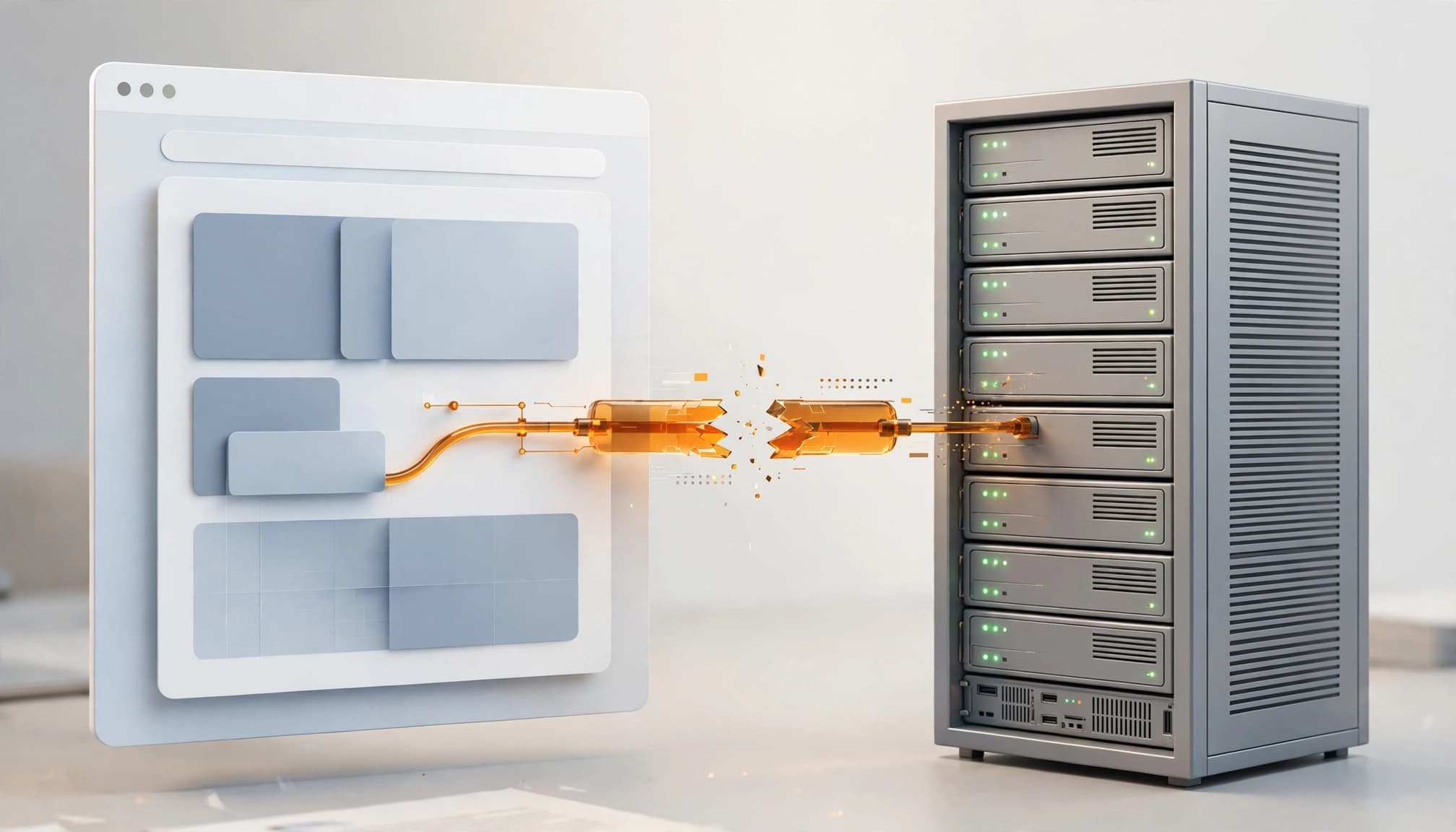
WordPress “Updating failed” JSON errors usually mean the block editor (Gutenberg) received an unexpected response from the server’s REST API. Your internet connection can be working whilst a plugin, redirect or firewall blocks the save request.
For a small business, this can interrupt publishing without taking the public website offline. Start by protecting your unsaved content, then follow the evidence before changing settings.
Key takeaways
- Block editor publishing errors and failed WordPress software updates need different troubleshooting paths.
- Back up files and the database before changing plugins, configuration or core files.
- Change one thing at a time, repeat the same test, and restore unsuccessful changes.
- Contact your host when logs point to blocked requests, database failures or server limits.
Match the exact error before choosing a fix
The wording identifies which part of WordPress needs attention.
| Error message | What to investigate first |
|---|---|
| “Publishing failed. The response is not a valid JSON response.” | The editor’s REST API request and the response it received. |
| “Publishing failed. You are probably offline.” | Server communication, even when other websites load normally. |
| “Publishing failed. Could not update post in the database.” | Database writes, storage and server logs. |
| “Update failed” during a core or plugin upgrade | Downloads, permissions, resources and incomplete files. |
The first two messages concern saving content. They aren’t proof that WordPress itself needs reinstalling. WordPress.org has support discussions about JSON publishing failures showing this block editor symptom.
Before reloading, copy your unsaved text somewhere safe. Record the error, affected page, time and recent changes. Also check your backup recovery process before making changes that affect the live site.
1. Rule out browser and site-address problems
Test a fresh browser session
After saving your text, sign out and back in. Then retry in a private window or another browser. A different device can also help separate a local browser problem from a server-side failure.
If another session works, clear the original browser cache and cookies for the site, then sign in again. This may resolve stale authentication or cached scripts, but it won’t repair a blocked REST API.
Compare the WordPress addresses
Open Settings > General. For a standard installation, the WordPress Address and Site Address, which together define the site URL, should be identical, including HTTPS and any www prefix.
However, installations that deliberately keep WordPress in a subdirectory can have different addresses. Don’t overwrite that arrangement blindly.
Record both original values before correcting an unintended mismatch. If the change causes problems, restore them through your host. Consult your host or developer before editing configuration files, redirects or server rules.
2. Test the REST API and inspect the response
Start with Site Health
Open Tools > Site Health and look for “The REST API encountered an unexpected result”. WordPress’s Site Health documentation explains the diagnostic screen and environment information available there.
Next, open your site’s /wp-json/ address. Normally, it returns structured JSON data rather than a designed webpage.
A login page, security challenge or server error gives you a lead. However, a successful public response doesn’t prove that authenticated editing requests work.
Identify what replaced the JSON
In your browser’s developer tools, open Network, retry saving, and inspect the failed request containing /wp-json/.
A 401 or 403 suggests an authentication or access problem. A 404 can indicate routing trouble. A 500 points towards a server-side failure. Inspect the response body too: HTML or a PHP warning can explain the invalid JSON message.
For a 404, saving Settings > Permalinks without changing the structure may refresh WordPress rewrite rules. Preserve custom rules first. Ask your host to investigate firewall blocks rather than disabling protection across the site.
A public REST API endpoint can work whilst the authenticated request used to save a post still fails.
3. Isolate plugin and theme conflicts safely
Deactivate plugins, then rebuild the combination
Use an isolated staging copy wherever possible. Disconnect email marketing and lead-generation automations first, so tests don’t contact real clients.
Record active plugins and versions, then follow this sequence:
- Open Plugins > Installed Plugins, select the active ordinary plugins, choose Deactivate from Bulk actions, and apply it.
- Retry the same publishing action.
- Reactivate plugins individually, enabling parent plugins before dependent add-ons.
- Repeat the test after each activation and record when the fault returns.
If deactivation changes nothing, restore the original plugin state. Must-use plugins and hosting drop-ins remain separate suspects.
This test can identify plugin conflicts, but reproduce the component interaction before attributing the fault to one plugin.
Test the theme or use Classic Editor temporarily
If plugins aren’t responsible, switch to an installed, compatible default theme on staging. Repeat the save, then restore the original theme.
Theme changes can affect web design and digital branding, so avoid casual live-site switching.
For urgent publishing, the official Classic Editor plugin from the WordPress repository avoids the block editor’s REST API-dependent saving workflow. Test it with your content first, especially complex blocks.
This is a temporary route around the symptom, not a repair for the underlying API problem.
4. Diagnose failed WordPress software updates separately

Check resources and PHP compatibility
A “WordPress updating failed” message during a core or plugin upgrade needs a different investigation from a publishing error.
When updating WordPress, inspect available disk space and logs from the time of failure. Full storage, exhausted PHP memory or interrupted downloads can stop an update.
A WordPress.org support case involving WordPress 6.8.2 included a moderator’s advice to use at least PHP 7.4, including for current plugins. Treat that as case-specific troubleshooting advice, not a current recommended PHP target. PHP 7.4 is end-of-life.
Have your host check PHP version compatibility before you change it. Increase memory only when logs show exhaustion and the hosting account has capacity.
Investigate checksums and file access
“The checksum of the file does not match the expected checksum value” means the downloaded package failed an integrity check.
In that WordPress.org case, the moderator traced the issue towards hosting because a separately downloaded file’s MD5 checksum matched. Don’t bypass integrity checks or assume replacing plugins will help.
Folders commonly use 755 permissions and files 644, but file permissions depend on ownership and hosting configuration too. Ask your host before applying recursive changes, record existing values, and never use 777 as a shortcut.
If logs show HTTP 500 failures, follow our WordPress server-error troubleshooting steps.
5. Recover an interrupted update without deleting content
Remove only a stale maintenance flag
“Briefly unavailable for scheduled maintenance” can be normal during an update. First establish that the update or deployment has stopped.
Then use your host’s File Manager or an FTP client configured for secure SFTP. Enable hidden files and locate .maintenance in the WordPress root. Download a copy before deleting only that file.
Test the public site and dashboard separately. Don’t recreate the stale flag as a rollback.
Removing it clears maintenance mode; it doesn’t repair incomplete software. If the notice remains, investigate caches, hosting settings or maintenance plugins using our stuck maintenance-mode guide.
Repair core files under controlled conditions
If automatic updating repeatedly fails, a manual update may be appropriate after a complete backup.
Download a fresh package for the intended WordPress version from WordPress.org. Have a developer replace wp-admin, wp-includes and the appropriate root core files using the official manual procedure.
Preserve wp-config.php and existing wp-content content. Complete any prompted database upgrade, restore the intended plugin state, and retest.
Before restoring a full backup, preserve newer orders and enquiries. A database rollback can erase them.
Know when to stop and contact your host
Contact your hosting provider first when REST requests are blocked, downloads repeatedly fail, or logs show database, memory or storage errors. Hosts can inspect firewall events and server resources that site administrators can’t access.
Send your hosting support team the exact message, timestamp and time zone, affected URL, failed request status, and changes already tested. Remove credentials and customer information from screenshots or logs.
“Could not update post in the database” deserves a database-write investigation rather than repeated browser resets.
For agencies needing ongoing web development and web hosting support, See how we collaborate with creative agencies.
Frequently asked questions
Why did publishing stop when I changed nothing?
Automatic plugin updates, expired sessions, hosting changes or new firewall rules can affect saving without a manual edit.
Compare the failure time with update records and host logs. Timing identifies suspects; a repeatable test provides stronger evidence.
Why are my WordPress plugins not updating?
Plugin upgrades can fail because of permissions, storage, downloads, compatibility or an expired commercial licence.
Read the upgrade-specific message before applying block editor fixes. If several unrelated plugins fail together, investigate shared hosting resources and connectivity first.
How do I know the repair worked?
Repeat the original save, reload the editor and confirm the content persisted. Then inspect the published page whilst logged out.
Also test mobile-responsive layouts and enquiry forms, including connected systems and automation. A successful save doesn’t prove that the customer journey still works.
Restore publishing with evidence, not repeated guesses
The most useful repair fixes the failed request or update stage without introducing another fault. Keep a change log, restore unsuccessful experiments and leave server configuration to someone with the right access.
Once publishing works, record the cause and recovery steps in your website care and maintenance process. That gives the next person a tested starting point.
