


To update WordPress PHP safely, back up your files and database, test compatibility on staging, then change the version through your hosting dashboard. After switching, test the actions your customers use, including forms, bookings and payments.
For a small business or agency, a working homepage doesn’t prove the update succeeded. Your recovery plan matters as much as the upgrade itself.
Start by choosing a supported version that works with your whole website.
Key Takeaways
- Back up both WordPress files and the database, with a copy outside your live hosting account.
- Test WordPress, themes, plugins and custom code on an isolated staging site before changing production.
- Record the previous PHP version so you can restore service quickly if something fails.
Choose a supported PHP version
PHP runs WordPress on your server. Updating WordPress itself doesn’t update PHP, because your web hosting environment controls that setting.
Find your current version
In WordPress, open Tools > Site Health > Info, then expand Server. Record the PHP version before making changes. Also record your WordPress version and the versions of important plugins.
Keep hosting access available separately from WordPress. If the dashboard stops loading after the switch, you’ll need the hosting control panel to reverse it.
Select your upgrade target
WordPress’s server requirements recommend PHP 8.3 or greater. However, core compatibility doesn’t establish whether your theme, booking system or custom integrations will work.
As of November 2026, PHP 8.4 and 8.5 have active support, whilst 8.2 and 8.3 receive security-only support. PHP’s supported versions distinguishes these maintenance stages. Choose an actively supported branch that your complete site passes testing on.
Back up your files and database
A PHP switch normally leaves content untouched. However, you still need a recoverable copy before changing software or troubleshooting failures.
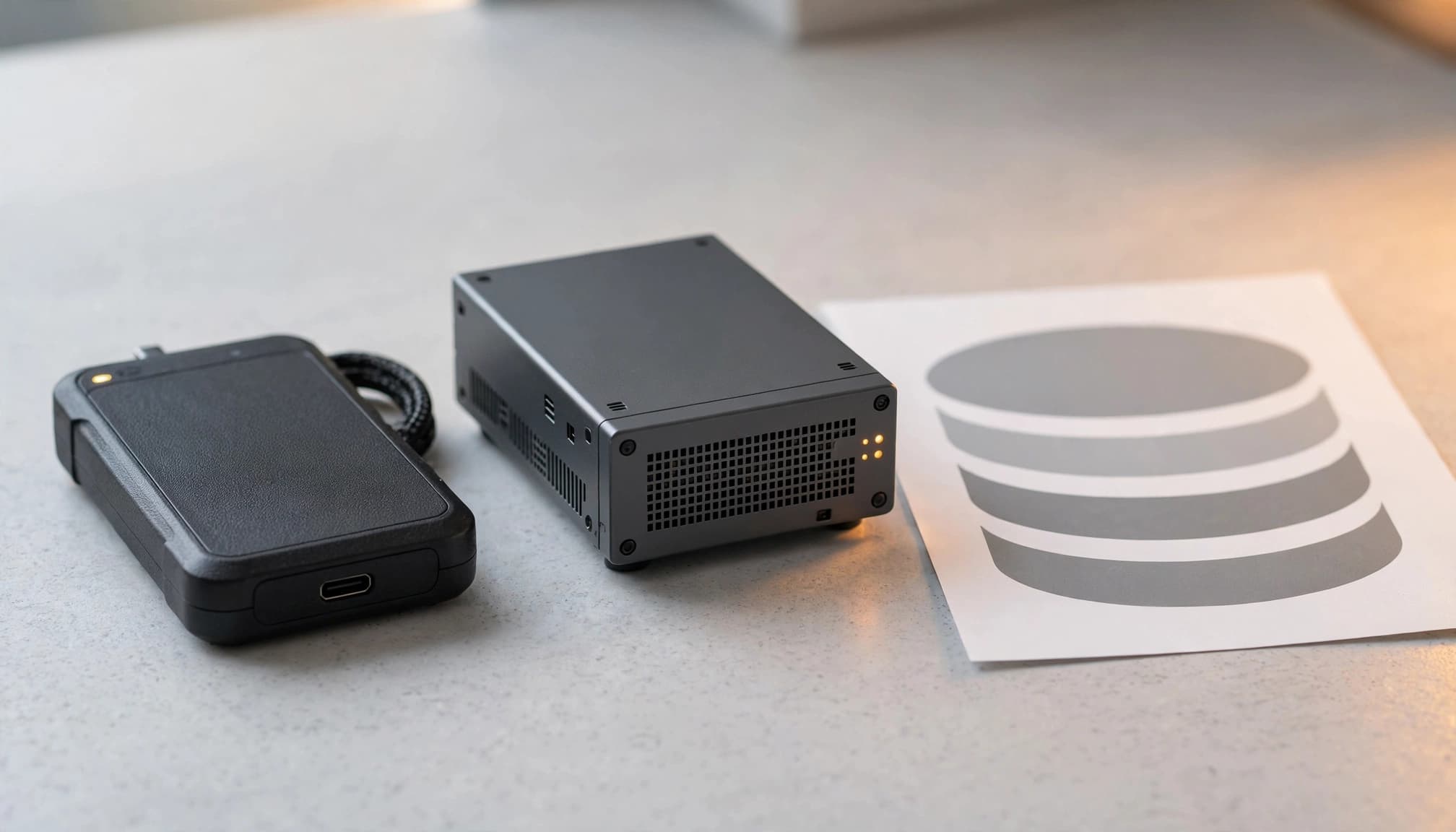
Create a complete backup
With UpdraftPlus, open Settings > UpdraftPlus Backups, connect remote storage such as Google Drive or Dropbox, then run a backup containing files and the database. Retrieve the remote copy rather than relying on the server’s local archive.
For a manual backup, download the WordPress installation through SFTP or your hosting file manager. Include uploads, plugins, themes, wp-config.php and hidden files such as .htaccess. Export the corresponding database through your hosting backup tool or phpMyAdmin.
Make recovery practical
Keep the backup outside the live hosting account. Record its timestamp and retain your last known-working copy separately.
Restore the backup into an isolated test environment to demonstrate that it works. An archive marked “complete” doesn’t prove that pages, accounts and stored records will recover.
Before restoring an older database, preserve newer orders, bookings and enquiries. A successful restore can still remove customer activity created after the backup.
Review WordPress, theme and plugin compatibility
A PHP upgrade can expose outdated code in a site that appeared healthy. Review the whole application rather than judging compatibility by its appearance.
Update maintained components first
After backing up, bring WordPress, your active theme and plugins onto compatible, maintained releases. Apply changes in controlled stages, testing between them.
Review release notes and stated PHP requirements for payment gateways, booking tools, page builders and membership plugins. Replace abandoned components before the upgrade when they prevent supported PHP use.
Don’t combine the PHP change with a web design refresh or digital branding update. Separate changes make failures easier to trace.
Include custom code and integrations
Custom web development needs attention too. Include child-theme functions, code snippets, must-use plugins and bespoke integrations in your review.
A compatibility scanner can identify suspicious code, but it can miss runtime failures and flag harmless code. Treat its output as a starting point.
For agency clients, document who owns fixes to bespoke functionality. A shared responsibility gap can delay recovery even when the technical fault is clear.
Test the change on an isolated staging site
Staging gives you somewhere to rehearse the upgrade without interrupting visitors. Our WordPress staging setup guide covers separating that environment from production.

Protect copied data and connections
Use separate database credentials and hosting-level password protection. Blocking search indexing alone doesn’t protect copied customer records.
Disable live payments, customer emails and outgoing webhooks. Pause email marketing connections, scheduled follow-ups and other systems and automation that could contact real customers.
Match production’s server configuration initially, then change only staging’s PHP version. A WordPress support discussion on staging PHP explains that separate version selection depends on the hosting setup.
Rehearse the production change
Apply the proposed PHP version to staging, then test customer journeys and review error logs. Repair compatibility problems there before proceeding.
If staging isn’t available, a developer can prepare an isolated copy elsewhere. Avoid using the live site as your first experiment.
You don’t need to push an entire staging database live for a PHP change. Reproduce the successful hosting setting on production, alongside any separately tested code fixes.
Update WordPress PHP in your hosting dashboard
Schedule the switch for a quieter period when someone can test immediately. Take another fresh backup first, especially if customers have submitted enquiries since the rehearsal.
Change the selected domain in cPanel
Open cPanel and find Software > MultiPHP Manager. Select the checkbox beside the correct domain, choose the tested version from the PHP Version menu, then click Apply.
These are the steps in cPanel’s MultiPHP Manager documentation. Available versions depend on the server configuration.
Pay attention to scope. A hosting account may contain several domains, and you don’t want to change unrelated client sites accidentally.
Find equivalent controls elsewhere
Other hosting dashboards commonly place the setting under PHP Settings, PHP Version, Runtime or Server Settings. Select the website or domain first, then locate its current runtime.
Some cPanel installations use Select PHP Version instead of MultiPHP Manager. Managed environments may restrict changes to hosting support.
If no version control is available, request the tested PHP version for the named domain. Include the previous version and rollback requirement. Avoid editing server configuration files as a substitute for a missing dashboard control.
Verify the live website beyond its homepage
After switching, return to Site Health > Info > Server and confirm the new PHP version appears. Then clear the WordPress cache, hosting cache and CDN cache where used.
Test logged out in a private browser window. Cached pages can hide failures that only affect fresh requests.
Use these acceptance checks:
- Open key service pages and navigation on desktop and mobile to assess responsive layouts.
- Submit contact, quote and booking forms, then confirm the submission and notification arrive.
- Test checkout through the payment provider’s supported test process, including confirmation screens and emails.
- Open the dashboard, edit a draft and run important searches or account actions.
Visit landing pages used by social media campaigns, local SEO listings and your Google Business Profile. These entry points often matter more for lead generation than the homepage.
Also test analytics events and CRM hand-offs. Missing tracking can distort digital marketing reports and conversion optimisation decisions even when enquiries still arrive.
Review PHP logs after these tests. Continue monitoring scheduled jobs and integrations through their next normal run.
Recover from common PHP upgrade errors
If important functionality fails, prioritise restoring service. Avoid changing several unrelated settings whilst customers are encountering errors.
Roll back the PHP version first
Return to the same hosting control and select the previous PHP version. Retest the failed action, then clear caches.
If this restores service, keep the upgrade paused whilst you repair incompatible code on staging. Returning to an unsupported release is a temporary recovery measure.
If the host has removed the old version, use hosting support to restore an available compatible runtime. A file backup alone doesn’t change the server’s PHP version.
Diagnose the remaining failure
For a blank page, critical error or HTTP 500 response, inspect hosting PHP logs at the failure timestamp. Our WordPress white screen recovery guide covers restoring access safely.
Use a WordPress Recovery Mode email if available. Otherwise, deactivate the plugin identified in the logs. Without dashboard access, rename that plugin’s folder through SFTP or File Manager, then retest. Don’t run uninstall routines or delete stored data.
An “undefined function” error may indicate incompatible code or a missing PHP extension. “Allowed memory size exhausted” requires investigation of the failing request and hosting limits; increasing memory isn’t a universal repair.
Preserve the current files and database before restoring an older backup. After repair, remove temporary debugging, restrict or delete diagnostic logs, and repeat the acceptance tests.
Frequently Asked Questions
Can I change PHP from the WordPress dashboard?
Standard WordPress doesn’t provide a PHP version switch. Site Health reports the version, but the host controls the runtime.
A plugin can’t replace the server’s PHP installation. Use the hosting dashboard or hosting support instead. Keeping separate access to that dashboard also gives you a recovery route when WordPress won’t load.
Will a PHP upgrade improve SEO or website speed?
A supported PHP release can improve execution efficiency, but results depend on the workload, plugins and hosting resources. An upgrade alone doesn’t guarantee faster pages or better rankings.
Measure comparable pages before and after the change. Also test uncached actions, because a cached homepage tells you little about checkout, searches or form-processing performance.
Make PHP updates a controlled maintenance task
A safe PHP upgrade depends on tested recovery, compatible code and checks that follow real customer journeys. Include it in ongoing website care and maintenance rather than waiting for an unsupported runtime to become urgent.
Keep the previous version recorded and your backup accessible. Move production only after the staging rehearsal succeeds.
See how we collaborate with creative agencies if your team needs technical support across client website builds, hosting and maintenance.
