


A WordPress database connection error appears as “Error establishing a database connection” when WordPress can’t reach its MySQL or MariaDB database. It then can’t retrieve posts, settings and user data. The cause may be incorrect credentials, an unavailable database server, corrupted tables or damaged files.
For a small business, an outage can stop enquiries and leave clients unable to book. Start with a recoverable backup, then follow the checks below in order, making one change at a time.
Key takeaways
- Protect both site files and the database before editing configuration or attempting repairs.
- After a migration, investigate credentials first; sudden failures on unchanged sites need an early hosting check.
- Remove temporary repair settings and diagnostic files immediately after troubleshooting.
1. Identify the WordPress database connection error
Protect your files and database first
Back up WordPress files, including wp-content and wp-config.php, plus the database. Keep a copy outside the live hosting account.
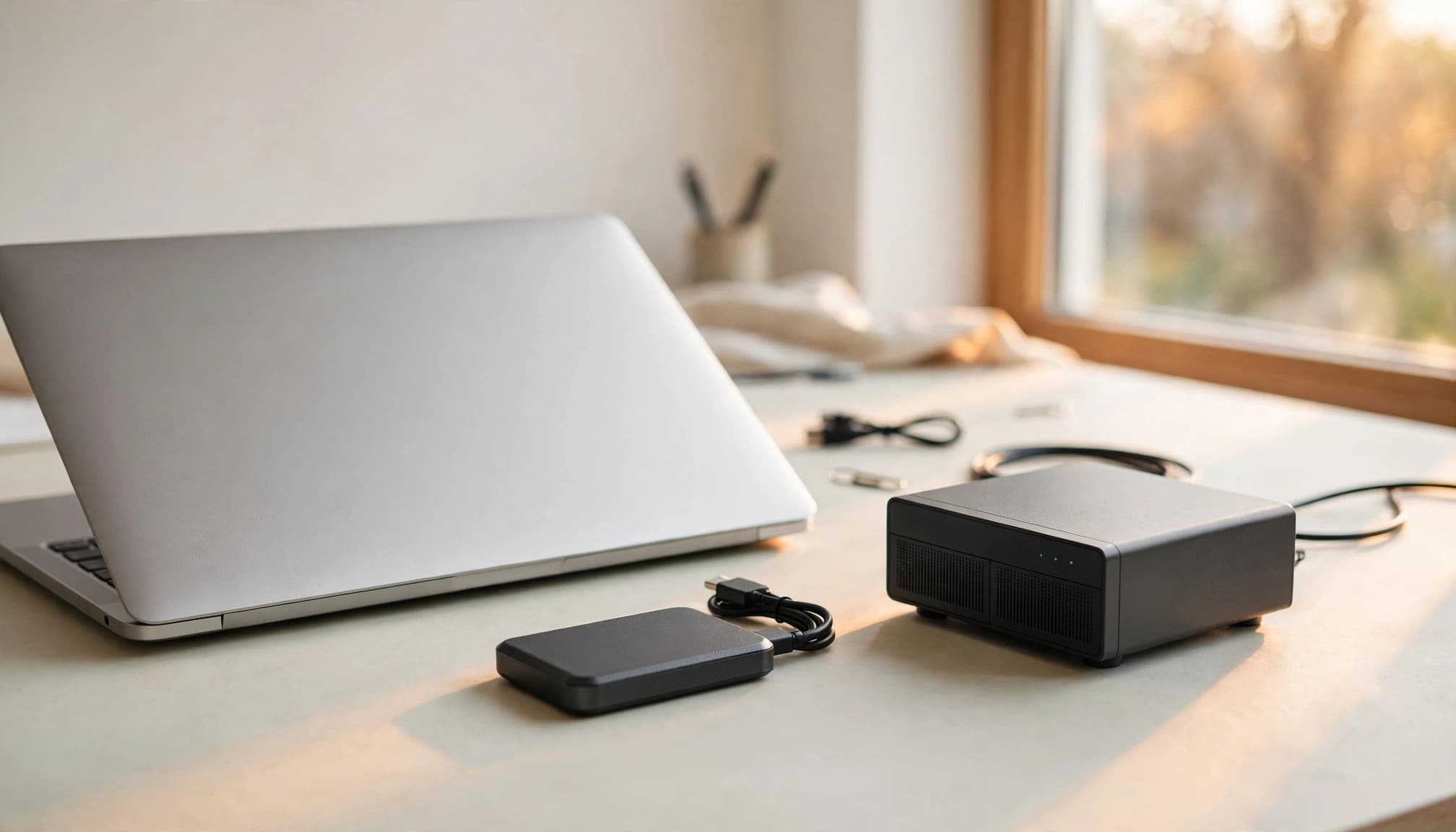
If the database won’t export, ask hosting support to preserve an available snapshot before attempting repairs. Don’t overwrite your last working backup with a failed copy.
Our website backup testing guide explains how to prove recovery works without overwriting production. A restore can erase newer orders, bookings and enquiries, so preserve those records before replacing any database.
Compare the public site and dashboard
Open the homepage and /wp-admin/ separately. Record the exact message, failure time and recent changes.
Use these symptoms to choose your starting point.
| Symptom | First investigation |
|---|---|
| Failure immediately after migration | Database credentials and hostname |
| Sudden failure without changes | Database service, storage and connection limits |
| Dashboard reports unavailable tables | Database corruption |
| Homepage works, dashboard fails | Cached homepage masking a fault |
These clues narrow the investigation, but they don’t prove the cause. A cached page can remain visible whilst WordPress itself cannot connect.
2. Check whether the database server is available
Look for a hosting incident or resource limit
Check your hosting status page and control panel for service incidents, exhausted storage or database connection limits. On shared hosting, another customer’s workload can also affect database availability.

An overloaded service sometimes recovers within minutes. However, contact support immediately for a business-critical outage. Otherwise, allow a few minutes before escalating.
Repeated failures need investigation, not longer waiting. Suitable caching or additional hosting capacity may help once the cause is established.
Use server commands only on self-managed hosting
On a self-managed Linux server, an administrator can run systemctl status mysql and inspect /var/log/mysql/error.log. MariaDB installations and some Linux distributions use different service names or log locations.
Look for stopped services, full disks, memory exhaustion and excessive connections. Don’t repeatedly restart MySQL without understanding the failure.
If you use managed or shared web hosting, leave service-level changes to support. Our managed versus shared hosting comparison explains how responsibility differs between those arrangements.
3. Correct the database credentials in wp-config.php
Match all four connection settings
Use SFTP or your hosting control panel’s File Manager to find wp-config.php in the WordPress installation directory.
The file contains four connection constants: DB_NAME identifies the database, DB_USER identifies its user, DB_PASSWORD contains that user’s password, and DB_HOST identifies the database server.
The usual DB_HOST value is localhost, although some hosts use a separate hostname or port. Don’t replace it with 127.0.0.1 as a blind fix.
Follow your host’s database settings and WordPress configuration documentation. Edit existing definitions rather than adding duplicates, and preserve their quotes and semicolons.
Reset credentials safely when necessary
In cPanel > MySQL Databases, sometimes labelled Manage My Databases, locate the existing WordPress database. Account prefixes form part of database and user names.
If the password is unknown, create a new database user with a strong password. Return to MySQL Databases in cPanel and, under Add User To Database, attach that user to the existing WordPress database. Grant All Privileges.
Then update DB_USER and DB_PASSWORD in wp-config.php, save the file and retest.
Copy credentials directly from the hosting dashboard or password generator. Trailing dashes, periods and spaces are easy to miss. Never paste credentials into public forums, screenshots or unsecured messages.
4. Separate credential failures from connection failures
If the cause remains unclear, a developer or hosting technician can create a temporary, access-restricted PHP test file using mysqli_connect().
The test must run on the WordPress server and use the same hostname, username, password and database name. Configure it to print “Database connection is working properly!” after a successful connection.
An “Access denied” response points towards authentication or user privileges. Meanwhile, “Connection refused” or a timeout points towards service availability, networking or the host setting. “Unknown database” suggests an incorrect database name.
The PHP MySQLi manual documents the connection interface.
Don’t publish raw diagnostic output or credentials. Delete the test file immediately afterwards. If PHP editing is unfamiliar, stop here and give support the recorded symptoms instead.
5. Repair corrupted database tables
Database corruption often produces this dashboard message:
“One or more database tables are unavailable. The database may need to be repaired.”
Only attempt repair after protecting the database. The repair tool cannot fix an unavailable MySQL service or incorrect login details.
In wp-config.php, add define('WP_ALLOW_REPAIR', true); before the comment telling you to stop editing. Then visit your site’s /wp-admin/maint/repair.php address.
Choose Repair Database first. Repair and Optimize Database also attempts optimisation, but it isn’t necessary for the initial repair.
Afterwards, remove the WP_ALLOW_REPAIR line immediately, even if the repair fails. The repair page doesn’t require a WordPress login whilst this setting is enabled, so leaving it active exposes a public maintenance function.
The database repair walkthrough covers the available options and removal of the repair constant.
If tables remain damaged, stop repeated repairs. Some storage engines don’t support this repair method. Hosting support may need to investigate storage or recover tables from a sound backup.
6. Isolate plugins and damaged WordPress files
Disable ordinary plugins without deleting them
If the database is reachable and credentials work, investigate recent plugin updates or custom web development changes.
Without dashboard access, rename wp-content/plugins to plugins_old using SFTP or File Manager. This temporarily prevents ordinary plugins from loading.
If access returns, open the dashboard’s Plugins page whilst the folder remains renamed. Then restore its original name and reactivate plugins individually, testing after each activation.
Don’t delete plugin folders or run uninstall routines. Must-use plugins and database drop-ins, such as wp-content/db.php, need separate investigation. If nothing changes, restore the original folder name.
Replace damaged core files carefully
After taking another backup, download a fresh WordPress package from WordPress.org matching your installed version.
Re-upload its core files, including wp-admin and wp-includes, but exclude wp-config.php and the entire wp-content folder. Preserve other custom root files too.
Ask support or a developer to handle this if file replacement is unfamiliar. Don’t make everything writable to bypass permissions errors.
If evidence points towards the theme, test a compatible default theme on staging. A live theme switch can alter layouts and branding, so avoid casual changes during an outage.
7. Restore service and test the enquiry route
If diagnosis stalls, a known-good restore may be safer than further edits. Preserve newer customer records first, and restore compatible files and database copies together.
Once WordPress connects, clear relevant WordPress, server and CDN caches. Then test as a logged-out visitor on desktop and mobile. A healthy-looking web design doesn’t prove forms or bookings work.
Submit an enquiry and follow it through notification delivery and any CRM, email marketing or automation steps. Also revisit landing pages used by your Google Business Profile, social media and digital marketing campaigns before resuming paid traffic.
Record the cause, fix and escalation owner in your website support plan. Regular website care and maintenance should include recovery testing and resource monitoring.
For agencies needing technical delivery and hosting support, See how we collaborate with creative agencies.
Frequently asked questions
How do I access my WordPress database?
Open phpMyAdmin or the database management tool in your hosting control panel. Select the database named in DB_NAME inside wp-config.php.
Use it to inspect or export data. Avoid changing or deleting tables without a backup and a clear diagnosis.
Why does the homepage work whilst the dashboard fails?
A page cache or CDN may serve a previously saved homepage without querying MySQL. The dashboard normally requires a live connection.
Test uncached pages and important actions before declaring recovery. A working homepage alone doesn’t establish that the database problem has cleared.
What should I send hosting support?
Send the affected address, exact error, timestamp and time zone, recent changes, and troubleshooting already attempted. Include relevant log excerpts through the host’s private support channel.
Never post database passwords publicly. Support can investigate service availability, storage and account permissions without speculative edits.
Get WordPress connected before changing anything else
The safest fix follows the evidence: credentials after a migration, hosting checks for sudden failures, and targeted repair for damaged tables.
Protect your data, make one controlled change at a time, and stop when the next step exceeds your access or experience.
Recovery is complete when visitors can enquire, book or buy, and those actions reach your team.
