


A WordPress 403 error means the server understood your request but refuses access, even when the requested page or file exists. The message may appear as “Access Denied”. Fixing it means finding which layer is blocking you: WordPress, file permissions, server rules or a firewall.
For a small business, that block can interrupt lead generation and leave clients unable to enquire. Start with reversible checks, then work through the deeper fixes below.
Key takeaways
- Back up files and the database before changing plugins, permissions or configuration.
- Match the failing request to server logs rather than guessing.
- Change one thing at a time, repeat the same test, and reverse unsuccessful changes.
1. Start with quick checks and server logs

Establish which requests fail
Open the homepage, an internal page and /wp-admin/ separately. Record the URL, action, failure time, recent changes and whether the response is a 403 or 404 error.
Next, try a private window and another connection, such as mobile data. If private browsing works, clear the site’s browser cache and cookies. This removes stale session data, although you’ll need to sign in again.
If only one connection fails, suspect an IP block. If only saving or uploading fails, investigate that request rather than changing the whole site.
Before deeper changes, back up files and the database, including hidden files such as .htaccess. Our website backup testing guide covers recoverable copies.
Read the matching log entry
Open the Apache or Nginx error log through your hosting panel. Match its timestamp to the failed request.
directory index of ... is forbidden points towards a missing index file or incorrect document root. Permission denied suggests filesystem access or ownership. A ModSecurity message with a rule ID points towards a firewall rejection.
For deeper isolation, a developer can briefly create test.html and a minimal test.php that outputs plain text. If both fail, investigate server access rules. If HTML works but PHP fails, investigate PHP handling or request restrictions. If both work but WordPress fails, focus on WordPress-specific rules and components.
Remove diagnostic files afterwards. These tests narrow the search; they don’t prove a single cause.
2. Isolate plugin and theme conflicts
Deactivate plugins without deleting them
Start with a recently changed plugin, particularly security or caching software. If there’s no clear suspect, record active plugins and deactivate all ordinary plugins through Plugins > Installed Plugins.
Retry the failing action. If it works, reactivate plugins individually and retest after each activation. Enable parent plugins before dependent add-ons.
Without dashboard access, use cPanel File Manager or an FTP client that supports SFTP, such as FileZilla:
- Rename
wp-content/pluginstoplugins_old. - Retest, then visit the dashboard’s Plugins screen whilst the folder remains renamed.
- Rename it back to
plugins, then reactivate plugins individually.
WordPress may display “Plugin file doesn’t exist” notices until the folder returns. Don’t uninstall anything. Must-use plugins and hosting drop-ins remain active and need separate investigation.
If nothing changes, restore the original plugin state.
Test the theme on staging
Switch an isolated staging copy to an installed, compatible default theme, such as Twenty Twenty-Five. Repeat the same action.
If that resolves the error, investigate the original theme, child theme and recent custom web development changes. Restore known-good code through your deployment process.
Theme switching can alter web design and digital branding, so avoid casual live-site changes. Also disconnect staging from email marketing and other automations to prevent test messages reaching real clients.
3. Repair file permissions and ownership
Incorrect access permissions can stop the web server reading WordPress files. Correct ownership matters too: changing permissions won’t repair files owned by the wrong server account.
These are common WordPress permission settings:
| Item | Common setting | Important qualification |
|---|---|---|
| Directories | 755 | The server needs traversal access. |
| Files | 644 | Files must remain readable by the server. |
wp-config.php | 440 or 400 | Use restrictive values compatible with server ownership. |
These values are a baseline, not a universal prescription. You’ll also see guides recommending 744 or 755 for directories and 640 or 644 for files. They’re not interchangeable: 744, for example, removes directory traversal for group and other users.
The WordPress administration handbook reference provides further context on filesystem access.
In FileZilla, open File permissions. For an approved recursive repair, apply 755 to directories only, then 644 to files only. Preserve or restore the appropriate wp-config.php restriction afterwards.
Record existing values before changing them. If ownership is wrong, hosting support should repair it.
Never use
777as a shortcut. It grants broad write access and can leave the underlying ownership problem unresolved.
4. Check rewrite rules and missing index files
Rebuild .htaccess on Apache
A misconfigured .htaccess file can deny access through security directives or rewrite rules. Enable hidden files in File Manager or your SFTP client to locate it.
Download a backup, preserve custom redirects and security rules, then briefly rename the file to .htaccess.bak. Prefer staging where practical because this temporarily removes its protections.
Retest the affected URL. If access returns, open Settings > Permalinks and select Save Changes, without changing the permalink structure. On a writable Apache setup, WordPress regenerates its rules in a new .htaccess file.
Restore necessary custom rules carefully. If renaming makes no difference, restore the original filename before continuing.
Inspect Nginx configuration and the document root
Nginx doesn’t use .htaccess. Its equivalent investigation belongs in the relevant server block.
When index.php or index.html is missing, Apache or Nginx can return 403 because directory listing is disabled. For WordPress, restore the correct index.php from the installed WordPress release rather than enabling directory browsing.
Also inspect the domain’s document root. It should point to the intended installation, containing wp-admin, wp-content and wp-includes.
For Nginx, have the server administrator inspect root, the index directive and try_files routing. Correct the setting identified by the logs rather than replacing the entire configuration with a generic template.
5. Investigate security plugins, hosting firewalls and CDNs
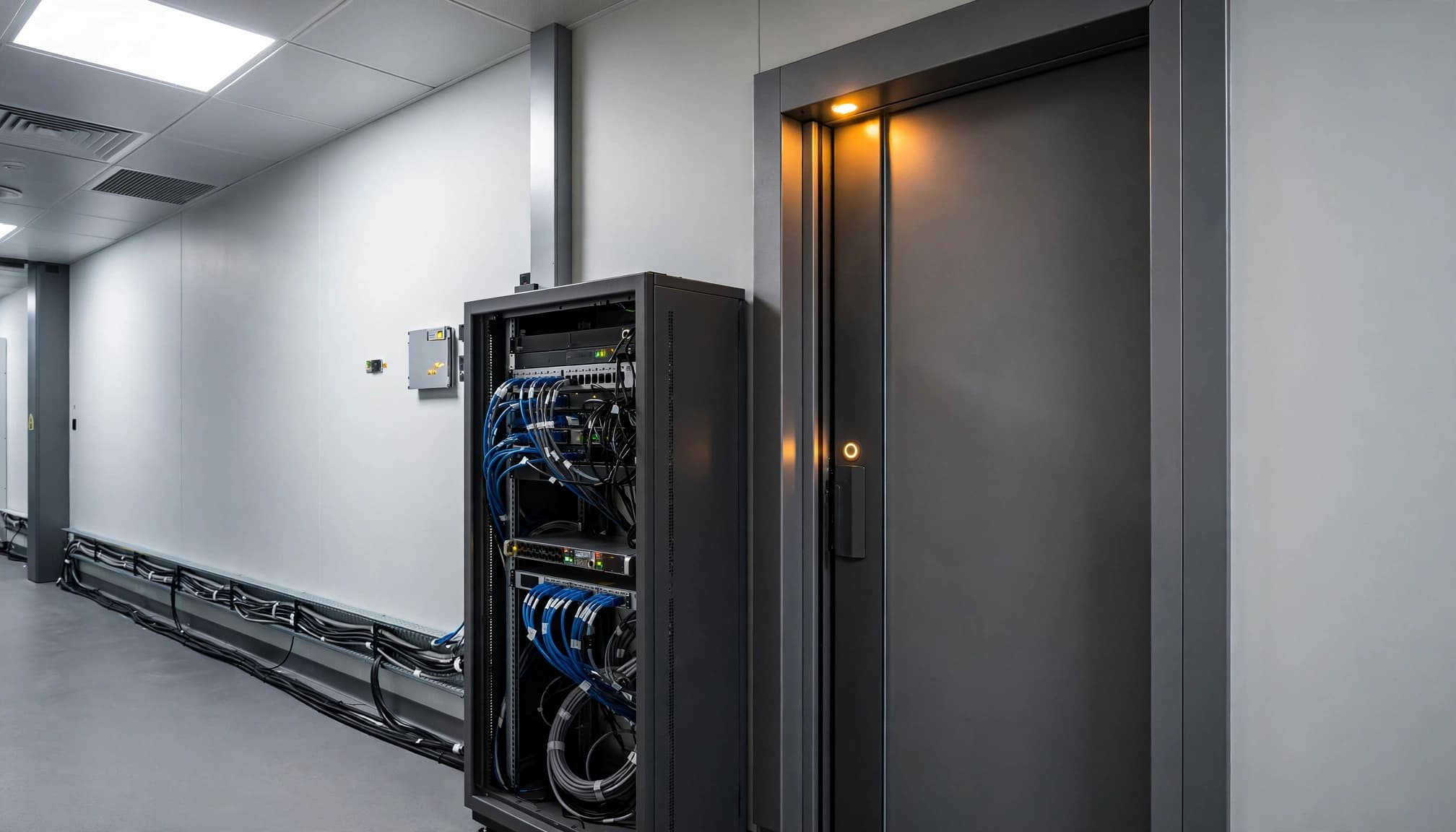
Security plugins, caching plugins, hosting firewalls and CDNs can reject legitimate requests. Inspect their event logs for the affected URL, IP address and timestamp.
For Cloudflare or another CDN, review matching security events and challenge rules. Correct the narrow rule responsible, then purge the relevant cache. Renaming a caching plugin doesn’t necessarily clear server or CDN caches.
In cPanel, Security > ModSecurity may allow temporary disabling for the affected domain. Use this only as a brief, controlled diagnostic test, then immediately re-enable protection. A better permanent fix targets the false-positive rule and request rather than leaving the firewall off.
For WordPress Multisite, an unintended wildcard subdomain or virtual-host setting can route a subdomain incorrectly. Remove the erroneous wildcard setting affecting that subdomain. Preserve intentional wildcard configuration required by the network.
If unexpected access rules keep returning, investigate a possible compromise rather than repeatedly deleting them. Our small business website security checklist covers the wider protections worth maintaining after recovery.
6. Confirm recovery and escalate persistent errors
A working homepage doesn’t prove the WordPress 403 error is resolved. Repeat the original failure, including logging in, uploading, saving or submitting a form.
Test logged-out access, internal pages and mobile journeys. Retest landing pages used by social media, email campaigns and your Google Business Profile. Form submissions should still reach their intended lead-management systems.
Persistent 403 responses can harm SEO because search engines may eventually remove inaccessible pages. Google Search Console’s Page indexing report, formerly Coverage, can show access-related exclusions. Inspect important URLs after recovery.
If the block persists, send your hosting provider the affected URL, exact timestamp and time zone, your public IP, matching log entry and changes already tested. Ask them to investigate IP blocks, ownership and recent server configuration changes.
Record the repair in your website care and maintenance process. See how we collaborate with creative agencies if you need a technical partner for client website builds, web hosting and ongoing support.
Frequently asked questions
Why is WordPress refusing my login?
A 403 on /wp-login.php or /wp-admin/ usually indicates an access restriction, security rule or IP block. Try a private window and another connection, then inspect security events. Repeated password resets won’t fix a server-level denial.
How do I fix a 403 error in Elementor?
Open browser developer tools, select Network, and reproduce the failed save. Inspect the rejected request, including /wp-json/ or admin-ajax.php. A security rule, expired session or plugin conflict may block it. Our WordPress publishing error guide covers authenticated REST request failures.
Can I fix the error without losing content?
Yes. Renaming folders, deactivating plugins and repairing access rules normally preserve posts and uploads. Keep backups and avoid uninstall routines. Restoring an older database can overwrite newer enquiries, orders and edits, so preserve those records before any rollback.
Restore access with controlled changes
A WordPress 403 error needs a targeted repair at the layer refusing access. Start with browser checks and matching logs, then isolate components before changing filesystem or server settings.
Keep each change reversible and retest the exact failing request. Recovery is complete when visitors can use the site and your team can manage it safely.
